

When a brand project wraps, the deliverable is usually a folder of logo files — often a dozen or more, in formats most small-business owners have never opened. SVG, EPS, PDF, PNG, JPG. Color, black, white. Horizontal, stacked, mark only. The first time a printer asks for “the vector EPS in CMYK,” it can feel like a quiz you didn’t study for. This is a short, practical tour of what every file in that folder is for and which ones you’ll actually reach for in a normal week.
The reason there are so many files is that a logo has to work in places that don’t talk to each other. A website browser, a screen-printed t-shirt, a vinyl decal on a truck door, an embroidered ball cap, a one-color fax form, a business card from a local print shop in Albuquerque, and a billboard on I-25 all want different things. The folder is built to cover every reasonable scenario without you having to call your designer each time.
The one distinction that explains everything: vector vs. raster
Logo files come in two fundamentally different kinds. Vector files describe a logo as math — points, curves, fills. You can scale a vector logo to fit a postage stamp or the side of a building and it stays sharp. Raster files describe a logo as a grid of pixels. They have a fixed resolution. Make them bigger than they were saved, and they get fuzzy.
Almost every problem people have with their logo files comes from using a raster file where a vector file belonged. A blurry logo on a sign, a pixelated business card, an awful-looking PDF — these are usually the result of someone grabbing the small PNG that came in an email and sending it to a printer. Knowing which file is which is half the battle.
A quick tour of the formats you’ll actually see
SVG (Scalable Vector Graphics) — the vector format for the web. Crisp on any screen, tiny file size, and it’s what your website should use for the logo in the header. If your developer is doing things well, your site is serving an SVG.
EPS (Encapsulated PostScript) — the vector format that print vendors, sign makers, embroiderers, and promotional-product companies still ask for by name. It’s older than SVG but it’s the lingua franca of production. When a printer says “send me the vector,” they usually mean the EPS.
PDF — a versatile container. A logo PDF is usually vector inside, which makes it useful for sharing, approvals, and handing to a printer when you’re not sure whether they want EPS. PDFs open on every device without special software, which is why they’re the friendliest format to email.
PNG — the raster format with a transparent background. PNGs are what you drop into a Google Slides deck, a Word document, an Etsy listing, a Mailchimp newsletter, or a social-media post. They have a fixed size, so the folder usually contains a few — large, medium, small — and you pick the one closest to how big you need it.
JPG — also raster, but no transparent background. JPGs are smaller than PNGs and fine for previews or for placing your logo on a solid color, but they show an ugly white box anywhere the background isn’t white. Most folders include them for completeness, not because you’ll reach for them often.
Color modes: RGB, CMYK, and Pantone
Alongside the format suffix, you’ll see the file names tagged with a color mode. These describe how the color is built, and they matter because color behaves differently on screens than on paper.
RGB — Red, Green, Blue. The way screens build color, by mixing light. Use RGB for anything that will be viewed on a screen: your website, social media, email, presentations, video.
CMYK — Cyan, Magenta, Yellow, Black. The way commercial printers build color, by mixing ink. Use CMYK for anything printed on a four-color press: brochures, business cards, postcards, magazine ads, packaging.
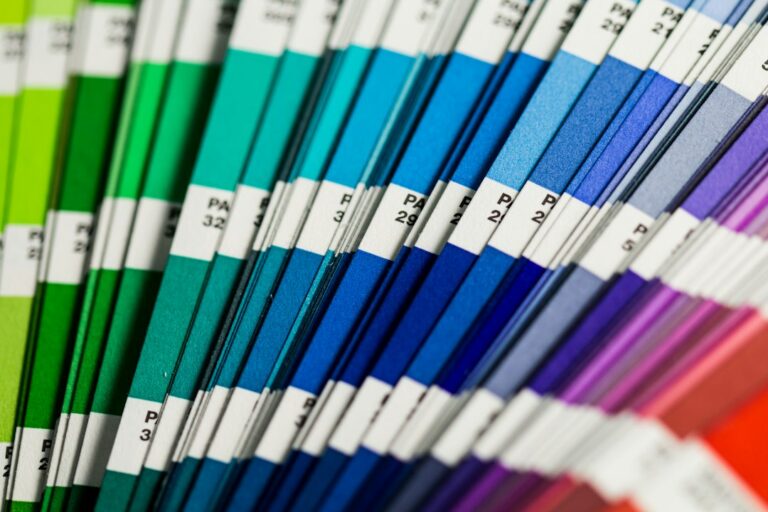
Pantone (PMS) — pre-mixed inks identified by a number, like a paint chip. Use Pantone when color consistency matters across very different surfaces and printers — a logo on a hat, a sticker, and a printed catalog all looking like the same red. Pantone is also where you go for colors CMYK can’t reproduce well: neons, metallics, and certain saturated brights.
Why the same logo ships in three or four versions
Inside the folder you’ll usually find the same logo repeated in several variants. The most common are: a full-color version, a one-color black version, a one-color white version (sometimes called the “knockout” or “reverse”), and occasionally a grayscale version. Each one exists because of a real-world constraint. The black version is for the fax machine, the rubber stamp, the one-color t-shirt, the photocopier. The white version is for a dark background — a sponsorship banner, a navy hoodie, a black bag. The full-color version is for everything else.
You may also see a “primary” and a “secondary” version — typically a horizontal lockup and a stacked one, plus a mark on its own without the wordmark. Use the version that fits the space. A square avatar uses the mark; a website header uses the horizontal lockup; a tall portrait poster uses the stacked.
Which file do I actually send the printer?
The short answer: when in doubt, send the EPS or the PDF in CMYK. If the vendor asks for “vector art,” that’s what they want. If they ask for a Pantone color, give them the Pantone number from your brand guidelines and let them match — never try to translate a screen color into print yourself. For digital use — websites, social, email, slide decks — use the SVG if you can and the PNG (RGB) if you can’t. Save the JPG for the rare case where someone insists on it.
What you don’t need to keep on your phone
You don’t need every file at your fingertips. Most owners use the same two or three: a transparent PNG for digital documents, the SVG for the website (which the developer already has installed), and a PDF to email to a printer. Keep the whole folder in cloud storage — Dropbox, Drive, or wherever your team lives — and don’t worry about memorizing which is which. The folder is a reference library, not a daily-driver kit.
A well-organized logo folder will name files clearly: brand-name-logo-horizontal-color-rgb.svg, brand-name-logo-stacked-black-cmyk.eps, and so on. If yours doesn’t, ask your designer to send a labeled version. Five minutes of renaming can save years of guessing — and it’s the kind of small assist a long-term client of W Department, the Santa Fe boutique whose ongoing identity, advertising, and seasonal marketing collateral I handle, ends up using more often than the logo itself.
A working checklist for the folder you should expect
- Vector files: SVG, EPS, and PDF — in both RGB and CMYK
- Raster files: PNGs (transparent) and JPGs, at a few sizes
- Color versions: full color, all black, all white, and grayscale
- Lockup versions: horizontal, stacked, and mark-only
- A one-page brand sheet or guide listing the Pantone, CMYK, RGB, and HEX values
If your folder is missing any of these — particularly the vector files or the Pantone values — it’s worth asking your designer for a complete handoff. You paid for the logo. You should be able to use it anywhere.
If you’re putting together a new identity or trying to clean up a tangle of inherited logo files, Patrick Iverson builds brand identities for Santa Fe, Albuquerque, and Rio Rancho businesses with handoffs labeled, organized, and ready to use the day they land in your inbox. A logo folder isn’t useful if you can’t find what you need in it — that’s part of the work, not an afterthought.